Featured Post

Get some free money for doing stuff you already do.

Referral links to free money for both of us! Rakuten (eBates)  - Earn cash back when you shop online & in-store! Get $10 for signing u...

Showing posts with label Security. Show all posts

Tuesday, October 8, 2013

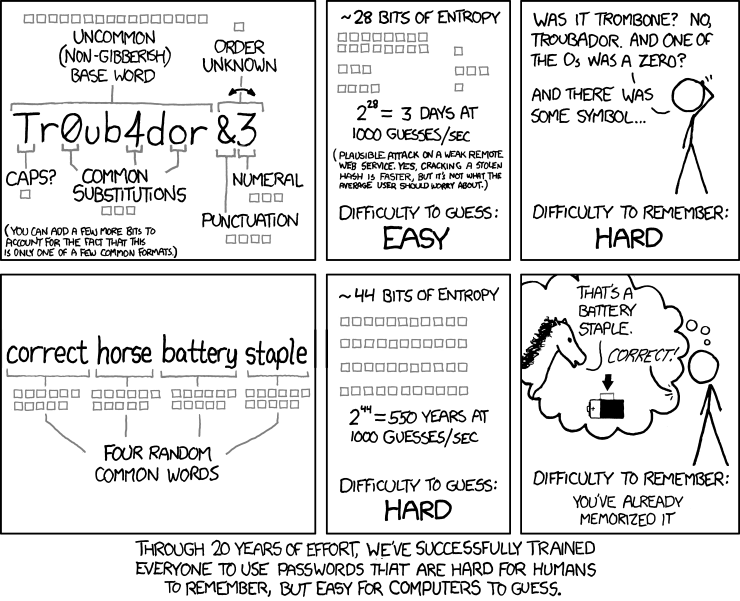
Passwords made simple and secure

A great comic strip explaining how easy it is for you to get hacked and how to make a better password. Be sure to also activate the 2 step verification from my previous post.


xkcd: Password Strength

Sunday, September 22, 2013

Your personal security online...

Everyone uses locks on their doors at home and some even have a security system to protect their personal belongings. Some get a car alarm and even one with a GPS to prevent your car from being stolen. A password on your phone, but what about your email? No one seems to secure email and it's the most important thing online now.

Why is email important? Think about it. Where are all your forgotten passwords resets sent? Especially for your banking and credit cards? Email. All I need to do is enter your password and is it even a secure one? Is it your kids name? Your wife's? Does it contain letters or numbers? Or even capital and lower case letters? Chances are it's a simple password. Is your password on this list?

25 most-used passwords revealed

Here are the steps to make it more secure and some recommendations:

1. Make a better password. Check this link out: http://xkcd.com/936/

2. Use Two-step verification. It's a second code that is sent to you or generated by an app, that needs to be entered. Think of it as your work VPN token. I have more information below.

Here are some links to popular email services with their "How-to". If you don't use any of these, I would seriously consider switching.

Hotmail or Oulook.com: http://windows.microsoft.com/en-us/windows/two-step-verification-faq

Yahoo: http://help.yahoo.com/kb/index?page=content&y=PROD_ACCT&locale=en_US&id=SLN5013

Gmail: https://support.google.com/accounts/answer/180744?hl=en

Apple: http://support.apple.com/kb/HT5570

Facebook: https://www.facebook.com/note.php?note_id=10150172618258920


Enjoy your new piece of mind!

Tuesday, June 26, 2012

The importance of software updates and upgrades...

With computers and technology advancing at an incredible rate, it is extremely important to do updates on existing devices and upgrade them when manufacturers end support on them. On average, technology has become obsolete in as little as 3 years. Support for those products also ends, which includes things like security updates and bug fixes. The most important being security fixes because this leaves you vulnerable.

One such example is the iPhone which is currently running iOS 5 with 6 due out later this year. As of 6/26/12, there are currently 141 vulnerabilities for that operating system. You can check the national database here:
http://web.nvd.nist.gov/view/vuln/search-results?query=apple+ios&search_type=all&cves=on

The other important reason to do the updates, is highlighted in my post here: http://www.atchan.com/2010/12/iphone-upgrade-warning.html

When you upgrade and migrate to your new device, it is best to keep up with incremental updates. As shown in my previous post. If you upgrade from iOS 1.1 to 3.1, there are A LOT of changes in how the data is handled. Things are improved, changed and fixed in each revision. If your data didn't do the natural progression of versions 1 to 2 to 3, you will lose that data. Software is designed to follow an order of progression, if you deviate, it will cause problems for you because the only way for them to keep track is through their revisions. Anything else creates too many variables that no one can track. Of course, you should always back up your data, but that is a totally separate post.

This also leads to another point. Large corporations, in an "attempt" to save money by pushing off "costly" upgrades and updates, actually pay much more, in most cases more than double, in the long tern when you are forced to upgrade when it comes to end of life support. Examples include additional hours required in attempting to keep the old data, problems that arise when attempting to connect older systems to newer systems, additional resources (hardware, 3rd party software, consultants) to bridge the time needed while the integration is tested, employee training, and down time related to problems in the upgrade. All these are additional costs that aren't calculated and end up costing so much more.

Software companies design the upgrade process into the newer products from the previous revision, not from older versions. For example, they will provide support for your migration from version 4 to 5, but as for version 3 to 5 you are on your own or will need to purchase 3rd party software specifically written to migrate that data and it is not always perfect because their software is based on a properly configured system. Which is NEVER the case because something is configured either differently or wrong.
Saturday, November 27, 2010

Browser Has Been Hijacked ?

  • Home page or other settings change on your computer. Links are added that point to websites that you'd usually avoid.
  • You can't navigate to certain web pages, such as antispyware and other security software sites.
  • A seemingly endless barrage of ads pops up on your screen.
  • New toolbars or Favorites are installed that give you icons and links to web pages that you don't want.
  • Your computer runs sluggishly. Malicious software can slow down your computer.
The following six tips can help restore your browser's settings:
  1. Stop cascading pop-up windows. If endless pop-up windows appear on your screen, you'll probably want to stop them first. To do this in Microsoft Windows 7, Windows Vista, Windows XP, or Windows 2000 while using Internet Explorer:
    • Press CTRL+ALT+DEL, click Task Manager, and then click the Processes tab.
    • Click IEXPLORE.EXE, and then click the End Processbutton.
    This closes all instances of Internet Explorer. Then you can re-open the program to continue browsing as usual. To help prevent future attacks, you should also have a pop-up blocker turned on.
    To turn on the pop-up blocker in Internet Explorer 8 click theTools button (the gear icon), point to Pop-up Blocker, and then click Turn On Pop-Up Blocker.
    To turn on the pop-up blocker in Internet Explorer 7:
    • Click Tools menu, click Internet Options, and then click the Privacy tab.
    • In the Pop-up Blocker box, select the Block pop-upscheck box. Click OK.
    If you still experience the other effects of a hijacked web browser, try the following:
  2. Install Microsoft Security Essentials or another antivirus and antispyware program. Microsoft Security Essentials is free software that will help protect your computer from malicious software such as viruses or spyware. Many browser hijacking programs can be identified and removed by downloading, installing, and running Microsoft Security Essentials or a similar tool.
  3. Run the Malicious Software Removal Tool . This can catch some, but not all, kinds of hijacking software.
  4. Reset Internet Explorer settings. If you're using Internet Explorer and your home page has been changed, you can often reset it yourself.
    Note If you use Microsoft Security Essentials, Forefront Client Security, Windows Defender, or the Windows Malicious Software Removal Tool and these tools have detected and removed hijacking software from your computer, these tools might change your home page and your search page to help protect against the malicious software.
    For more information and step-by-step instructions, see How to restore your Internet Explorer home page and search page preferences.
  5. Disable add-ons. Many browser hijackings come from add-ons, also known as ActiveX controls, browser extensions, browser helper objects, or toolbars. These items can improve your experience on a website by providing multimedia or interactive content, such as animations. However, some add-ons can cause your computer to stop responding or display content that you don't want, such as pop-up ads.
    To learn how to disable add-ons in Windows Vista or Windows XP Service Pack 2 (SP2), read How do browser add-ons affect my computer?
  6. Get more help. call 1-866- PC safety
  7. go online to Here let system try and fix these issues for you.
This is a combo of article posted on the Microsoft site.

Taken from http://blog.mir.net/2010/10/browser-has-been-hijacked.html . Great post Jay!